IN BRIEF:
Punch Passes can be sold directly through the Point of Sale in the Office Portal. This process allows staff to select and price a Punch Pass, assign it to the appropriate student when required, apply eligible Promo Codes, and complete the transaction using standard checkout procedures.
Overview
Punch Passes provide families with a prepaid option for attending classes or services. When sold through the Office Portal, Punch Passes are processed using the Point of Sale, ensuring the purchase is properly associated with the correct family and, when applicable, a specific student.
The sale workflow includes selecting the Punch Pass, confirming or adjusting pricing based on its configuration, assigning the pass if it is student-specific, and completing checkout.
Accessing the Feature
To begin selling a Punch Pass through the Office Portal:
- Navigate to either the FAMILIES or STUDENTS page.
- Locate the appropriate family or student.
- Select the Point of Sale (tag) icon to the left of the name.
This opens the Point of Sale dialog, where products, including Punch Passes, can be added to the cart.
Step-by-Step Instructions
Selecting and Pricing Punch Passes
Once the Point of Sale is open:
- Locate the desired Punch Pass using one of the following methods:
- Browse the All Products screen.
- Navigate specifically to the Passes category.
- Select the Punch Pass to view its details and pricing options.
Punch Pass pricing behavior depends on how the pass was configured:
Priced Per Use Punch Passes
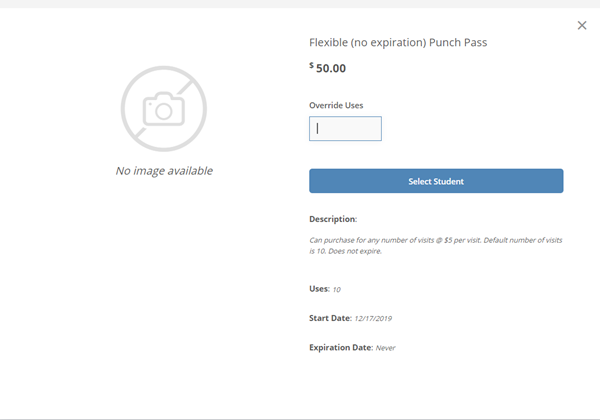
- The total price automatically calculates based on the Default Number of Uses.
- The number of uses can be manually adjusted during the sale.
- Adjusting the number of uses updates the total amount charged.
Flat Price Punch Passes
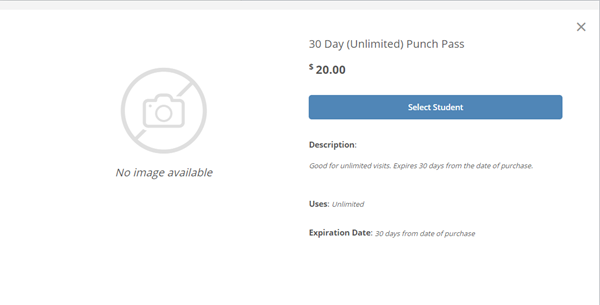
- The System applies the preset price automatically.
- No pricing adjustments are available during the sale.
These pricing rules ensure the charge accurately reflects how the Punch Pass is intended to be sold.
Assigning a Punch Pass to a Student
Some Punch Passes are configured as Student type passes and must be assigned to a specific student at the time of purchase.
For Student-type Punch Passes
- Select Select Student within the Punch Pass dialog.
- Choose the appropriate student from the list associated with the family.
This step ensures the Punch Pass is correctly linked and can be tracked and redeemed by the intended student.
Completing the Transaction
After the Punch Pass has been selected and, if required, assigned to a student:
- Select ADD PASS TO CART.
- Complete the checkout process using standard Point of Sale procedures.
Once the transaction is finalized, the Punch Pass is applied according to its configuration and becomes available for use.
Punch Passes and Promo Codes
Punch Passes sold through the Point of Sale may be eligible for discounts using Promotion (Promo) Codes.
Important details to note:
- Promo Codes can only be applied if the Punch Pass is connected to a Program that has a Promo Code attached.
- Eligibility is determined automatically based on the Punch Pass and Program configuration.
If the Punch Pass does not meet these requirements, Promo Codes will not apply during checkout.
Troubleshooting & FAQs
-
Why can I not adjust the price of a Punch Pass during the sale?
- Punch Passes with a flat price cannot be adjusted. Only Punch Passes configured as Priced Per Use allow changes to the number of uses, which updates the total price.
-
Why am I required to select a student for some Punch Passes but not others?
- Punch Passes configured as Student type must be assigned to a specific student. Other Punch Pass types do not require student assignment during purchase.
-
Why is my Promo Code not applying to a Punch Pass purchase?
- Promo Codes only apply when the Punch Pass is linked to a Program that has a Promo Code attached. If no eligible Program connection exists, the discount will not apply.